![Shaper-KB-Logo.svg]](https://support.shapertools.com/hubfs/Shaper-KB-Logo.svg)
This article describes a feature introduced with the Oakland Update. More information on updating Origin can be found here.
Probe Points is a Labs feature. These are new features that aren't totally finalized yet. More info on Labs features here.
The Probe Points extension helps map an existing part or shape for reconstruction and reproduction. Probe Points places circles at deliberate points that capture the length and angle of the existing shape’s features. These circles can then be used in Studio or other software to re-draw the shape.
What the Probe Points Feature Does- Uses any number of points to create a map of the existing shape
- Probe size and thus position is determined by the Bit Diameter
- The Bit Diameter is adjustable within Probe Points
- Probes are Guides to avoid cutting them inadvertently
- Use Export to capture the Probes for use in Studio or other software
- Once Exported the probes can be used to reconstruct the shape by connecting their tangent points
- Notes on edge position and other information can be embedded in the workspace using Text Basic
For best results make sure to already have a Grid setup.
Start Probing the Shape
Begin by selecting Probe Points in the Create menu: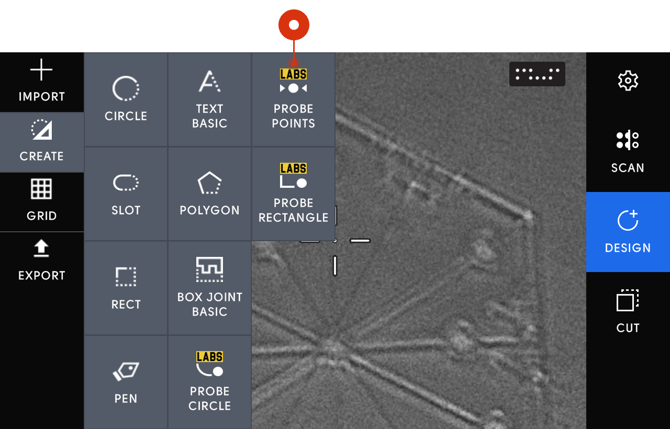
Lower the Motor until it’s in position to get the best possible probes. As with Grid and other Probe features we suggest using the Engraving Bit inverted to have the most solid, reliable edge.
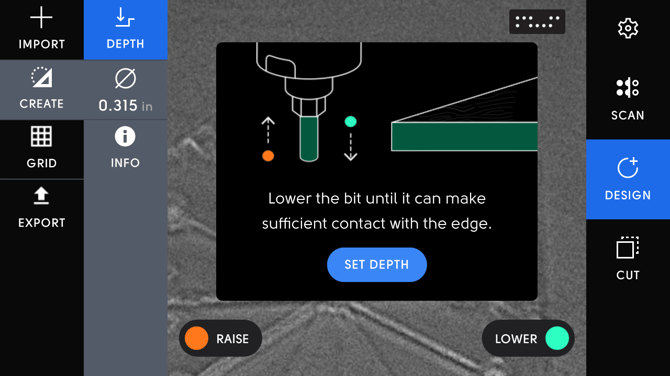 Note: Unlike other Probe and Grid functions there is no Edge option. The edge of the workpiece relative to the bit will need to be remembered or noted for reconstruction.
Each straight edge will be best captured with two points that are as far apart as possible. This will help reduce errors in the tangent line.
Capturing Curves
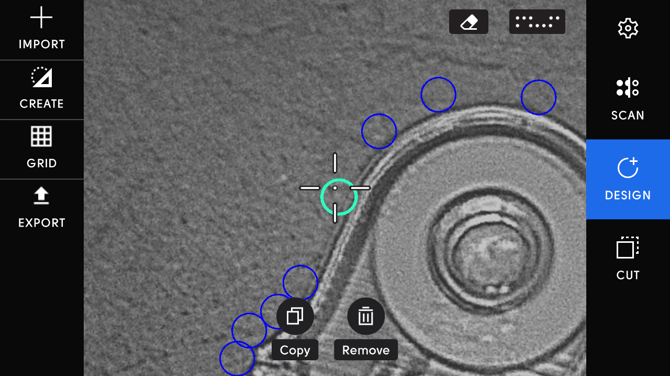
Curves can also be captured but will require more probe points for the best possible reference. You can probe the position of a curve and measure the curvature to recreate in Studio with the Circle or Ellipse tool.
Export from Origin
Using Export will send the Workspace to Studio as a design. Now the Probes are laid out for reconstruction and can now open in Studio or download an SVG for editing in other software.
If a Grid was used when Probing the Export will respect the 0,0 point of Origin’s Grid in Studio.
Reconstructing the Probes in Studio
Using the edges of each Probe as a tangent, draw a series of lines using the Line Tool. These are projections so it’s best that they overshoot the original edge somewhat. The lines will overlap at their respective intersections
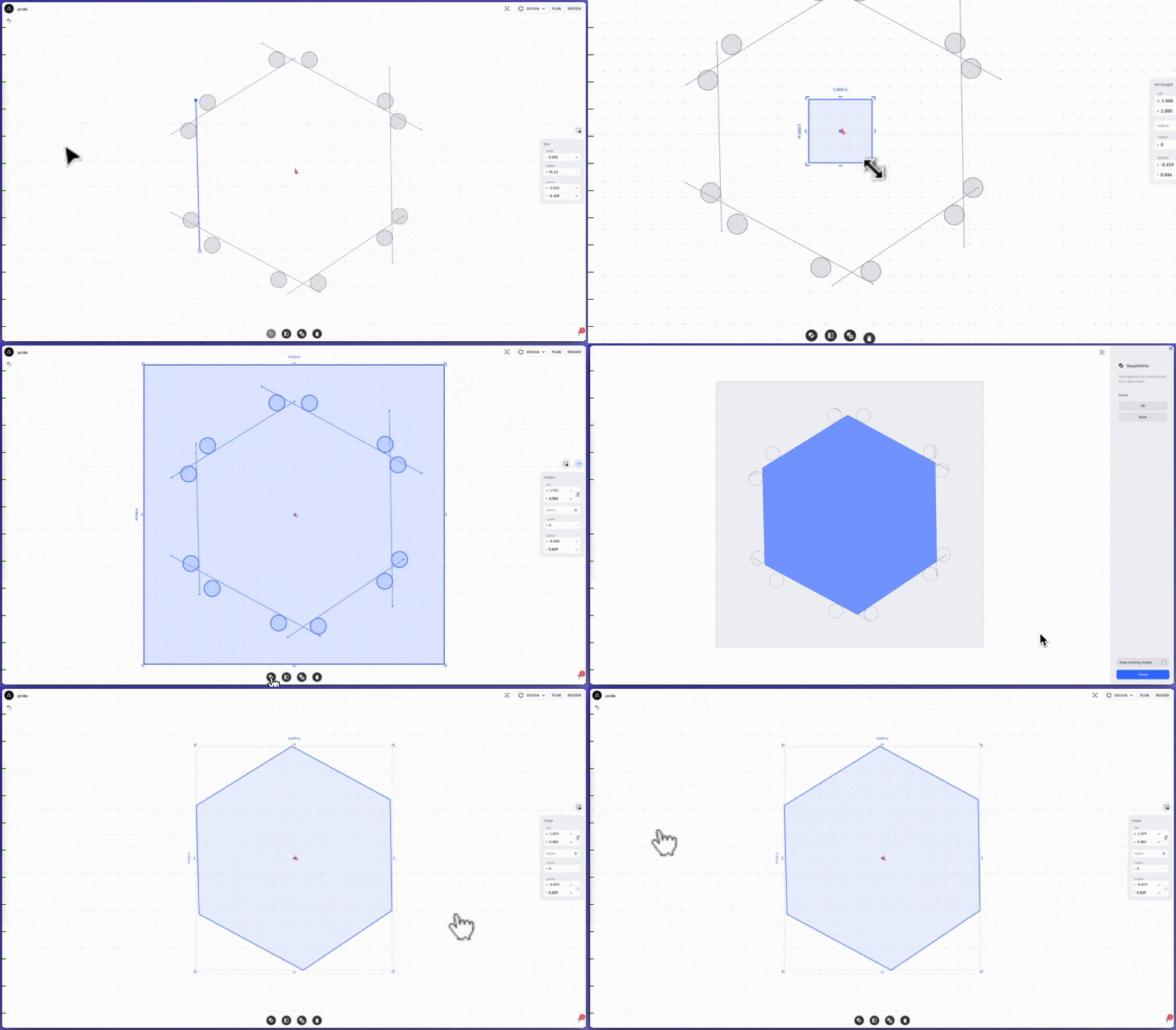
If there’s a mix of straight and curved lines use Ellipse to approximate the curvature of the shape:
Once all of the lines have been drawn encompass the Draw lines in a larger shape to provide an inside area, then use ShapeShifter to reconstruct the shape.