![Shaper-KB-Logo.svg]](https://support.shapertools.com/hubfs/Shaper-KB-Logo.svg)
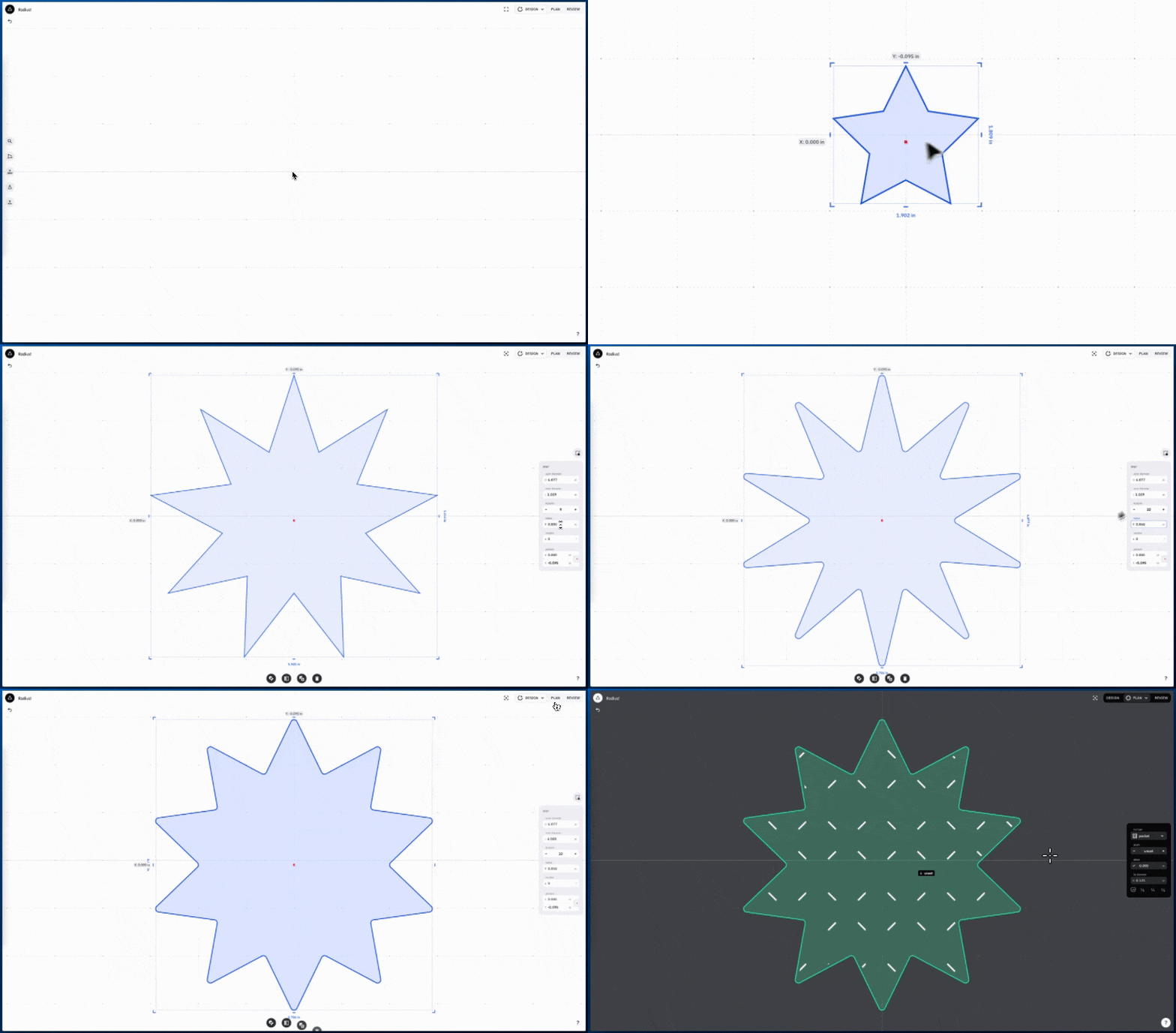
Along with changing size, position, and other parameters, Studio can round the corners of a shape placed in a design. This setting is available in the Edit Selection menu on the right-hand side of Studio's interface:
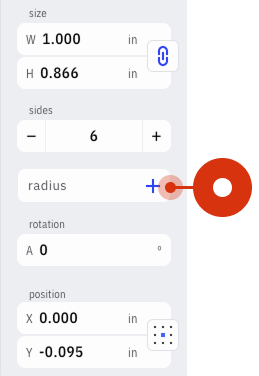
This parameter will round all sharp corners of the selected shape. It's available in all shapes except for shapes made with the Draw Tool.
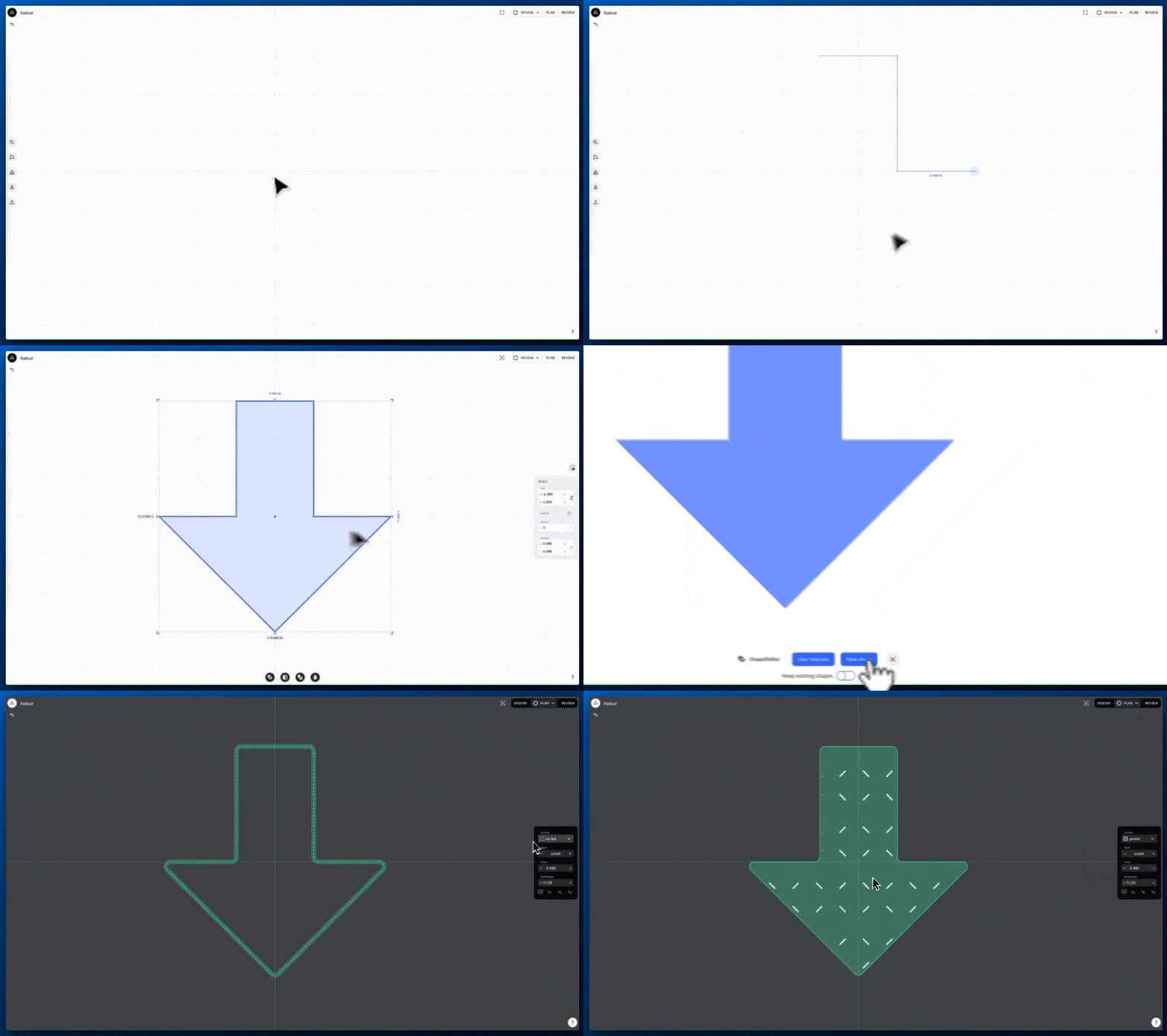
Tip: to round the corners of a Draw Shape tool, run it through Shapeshifter. The shape's endpoints and segments will no longer be editable with the Draw Tool but Radius can now be applied. Like so:
Editability of Radius / Radius behavior
As a parameter the radius you set on a shape will remain editable even if you change other aspects of your design like adding new shapes, change cut settings in Plan Mode, etc.
When a shape with an applied Radius is scaled the radius value will remain the same unless the shape becomes too small for that radius. This comes in handy when using radius for fabrication purposes where you may want consistent rounding either to fit a certain bit diameter, or to have a consistent style to your design.
If the radius needs to scale along with the shape running it through ShapeShifter will permanently apply the rounding into the shape.
Custom Radius
When Radius is clicked the option to adjust Custom Radii appears. Clicking again allows you to change the radius of each corner or multiple corners individually.
To select the corners that need to be adjusted simply click the small white circle that represents the corner. It will turn blue. Clicking another corner will select it in addition to any corners already selected. To deselect a corner that's selected, simply click it again and it will turn white again.
There are a few options when in the Custom Radius menu:
- Select All/None: Selects all corners or deselects any corners that are already selected
- Radius: Selecting the value by which to set the intended radius. There are some presets for quick and easy adjustments, and any needed value can be entered in the 'R' box
Corner Rounding for Inlay
When developing a shape for inlay it will be necessary that all corners are rounded to the same diameter to account for the radius of the selected bit.
Note: When adding a radius for an inlay the correct value is half the intended bit diameter or more. This will account for the curvature of the cutter you intend to use. For example: a 1/8” cutter would require corners greater than 1/16”.
Using Radius, regardless of the complexity of the shape that's being edited, rounding the corners to account for the bit is quick and simple.
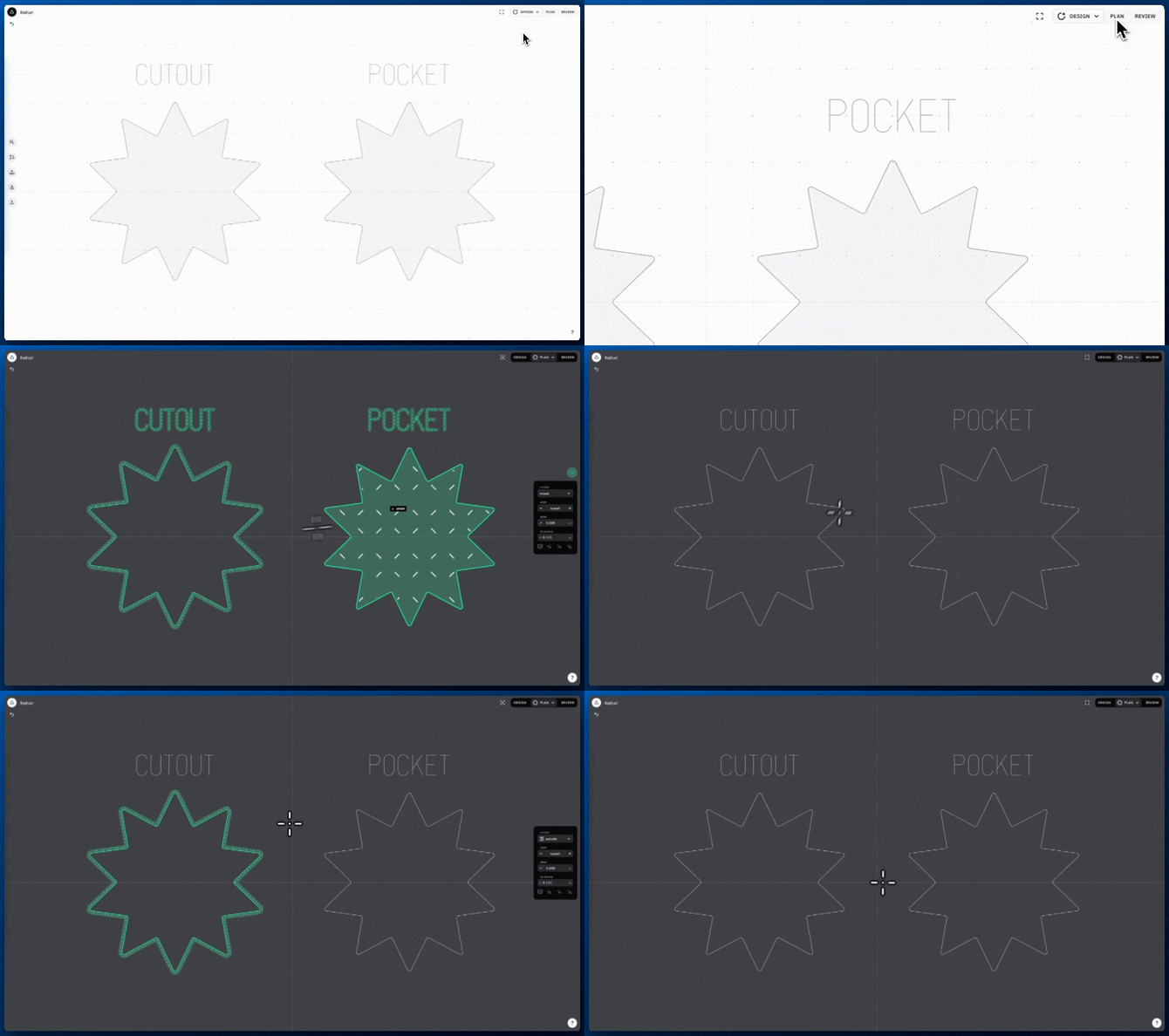
Since Radius accounts for both inside and outside corners the same shape can be used to cut the pocket and the insert:
What to do when the shape won’t accept the desired radius
Radii set using the Radius tool may be limited by the size of existing segments and corners in the input geometry. If a shape won’t accept the corner round being applied first try scaling the drawing so it can correctly fit the radius being applied and thus cut well with the intended cutter.
If the shape still won’t accept the radius it’s possible one of the corners is too tight for the intended radius at an acceptable scale. Inspecting the corners and adjusting them with ShapeShifter may be necessary.
Plan Mode can be used to help identify where a cutter can or cannot be used. While the desired radius may be applied it's still possible that a cutter will be overall too wide to fit throughout the contours of the cut. Plan Mode will show if there are any portions of the cut that can't accomodate the desired diameter.