![Shaper-KB-Logo.svg]](https://support.shapertools.com/hubfs/Shaper-KB-Logo.svg)
Studio’s Box Joint Pro allows to create Box Joint patterns with more customizable options. If you want to setup a simpler pattern use Box Joint Basic.
Box Joint Pro Options
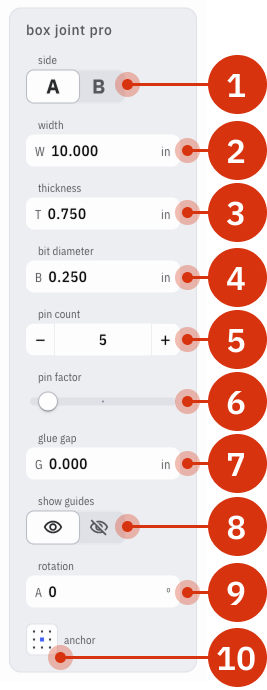
Note: unlike Origin’s Box Joint Basic feature there is no encoded depth to a Box Joint Basic pattern in Studio. Encoded depths can be setup manually in Plan Mode.
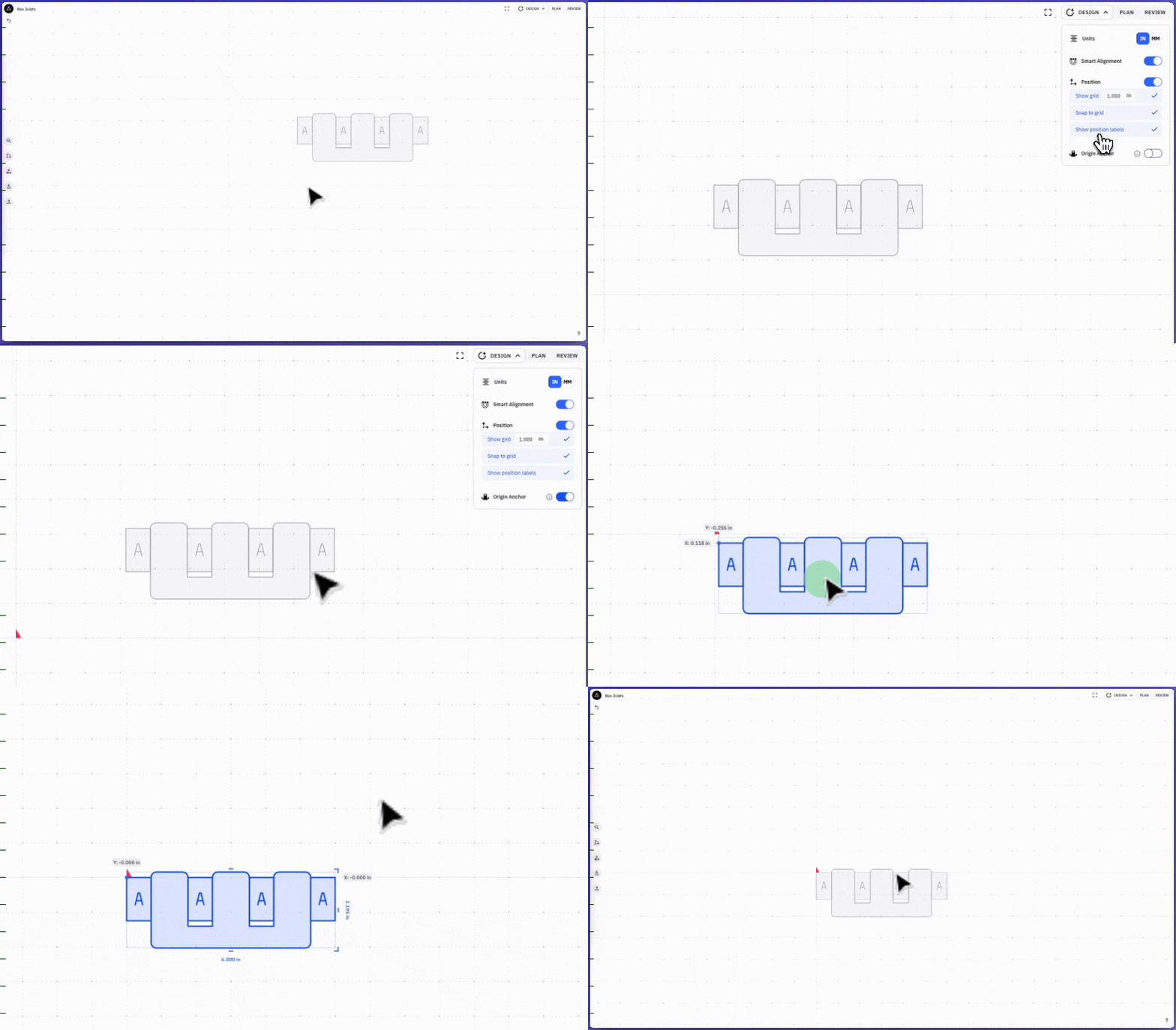
Once the Box Joint pattern is created place it according to the Origin Anchor in Studio to ensure accurate placement on Origin:
Using Pin Factor
Pin Factor changes the width of pins in both A and B to cut irregular patterns. To do this choose which set of pins you’d like to be wider or narrower and adjust the slider accordingly.
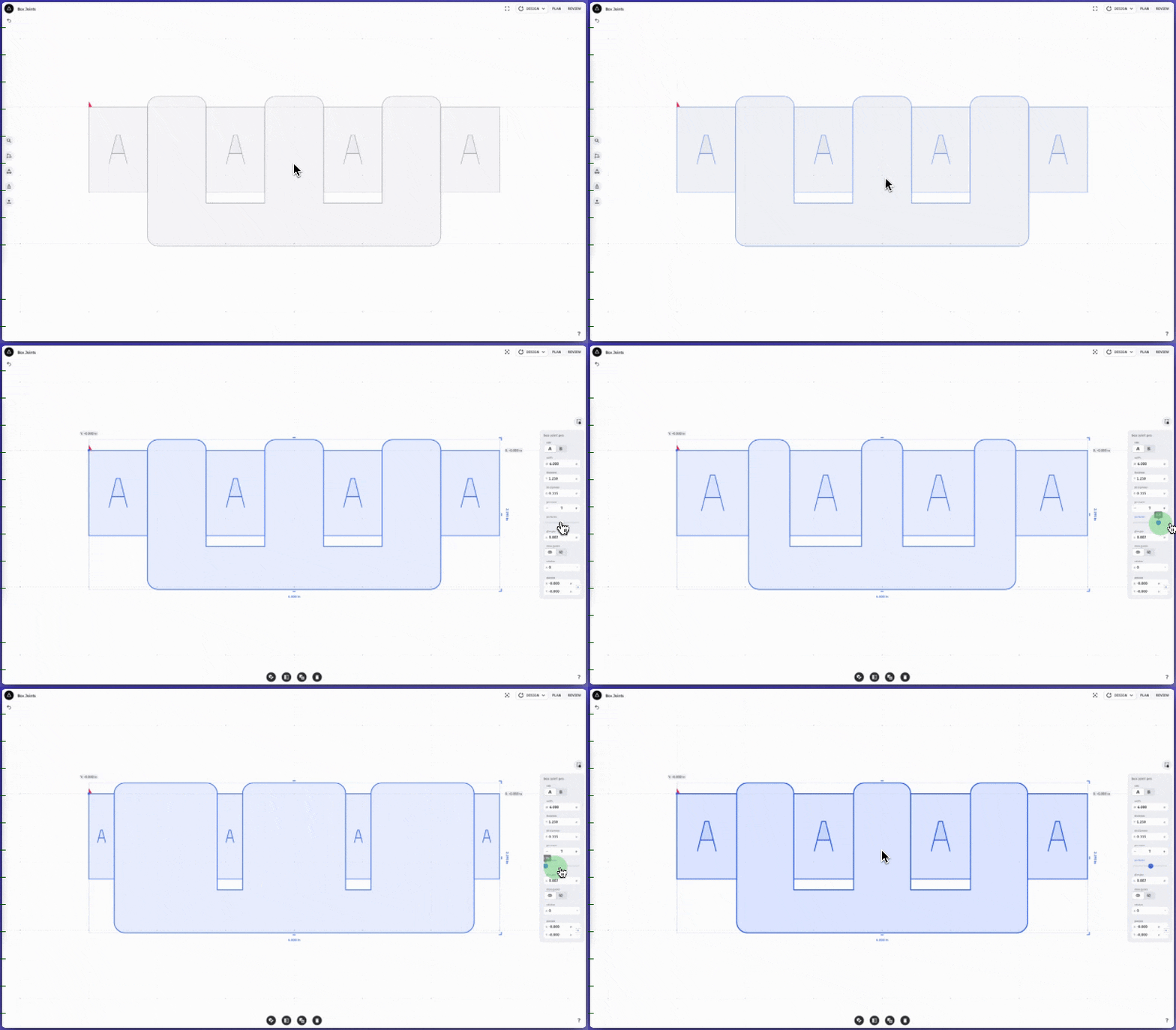 Note: do not adjust the Pin Factor after you’ve started cutting the pins.
Round Tripping with Box Joints in Studio
Probe Rectangle will create a Guide around the perimeter of the workpiece and setup a Grid to the center of that workpiece. Using Export from Origin will extract the Guide according to Origin's Grid into a Studio design. The Box Joint procedure can then be built around the measurements that came from Origin.
Centering the Box Joint pattern to the 0,0 point in Studio will align the pattern to the Grid that Probe Rectangle created in your Workspace. This is useful to ensure consistent alignment between Studio and Origin.