![Shaper-KB-Logo.svg]](https://support.shapertools.com/hubfs/Shaper-KB-Logo.svg)
For example, you may wish to edit Origin’s Cut Depth presets to a series of depths which you need to cut repeatedly. Or you may wish to edit Origin’s Bit Size presets to represent a set of router bits which you will be using for a project.
The following settings in Cut Mode include presets which may be edited:
- Cut Depth
- Offset
- Bit Size
- Speeds
- Plunge
- Auto
Editing Presets
Click any of the Cut Settings listed above to open it's input menu and view the existing presets:
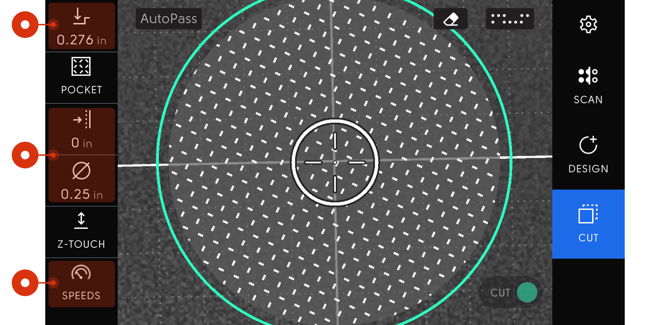
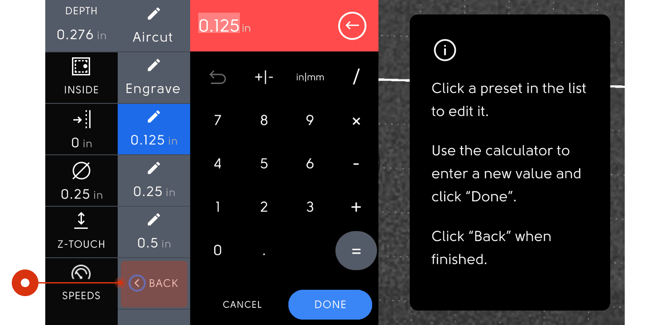
Click the button at the bottom of the presets list named Edit Presets. A pen icon will appear on each preset which can be edited.
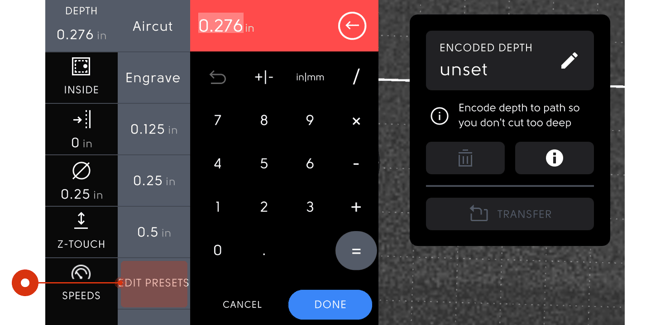
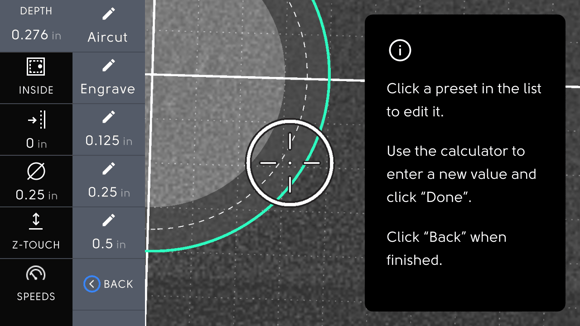
Click any preset displaying a pen icon to edit it. The calculator will open allowing you to enter a new value. Click Done on the bottom-right side of the calculator to update the preset to the new value.
Once you’ve finished editing your presets, click the “Back” button at the bottom of the presets list. This will return you to the default state for the Settings Menu (the pen icons will disappear).
To use any preset, simply click it to apply the preset value to the selected setting.
Reset the Edited Presets
If at any point you would like to reset all your edited presets back to their original values, follow these steps:
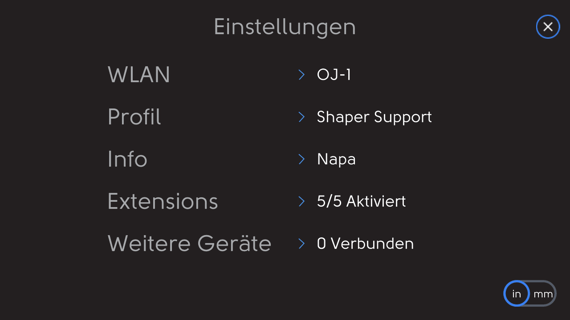
Click the Settings button  in the top-right corner of Origin’s display.
Click Info in the Settings Menu
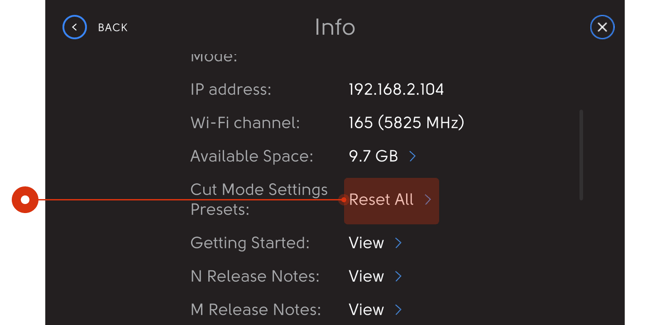
Scroll down until you see the setting named Cut Mode Settings Presets. Click Reset Presets to return all edited presets back to their original values.