![Shaper-KB-Logo.svg]](https://support.shapertools.com/hubfs/Shaper-KB-Logo.svg)
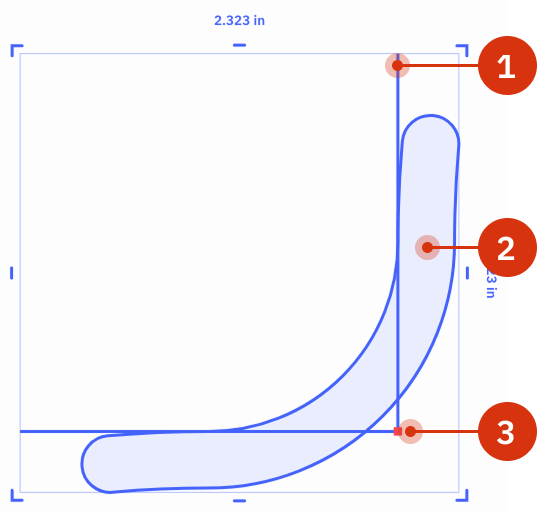
The Corner Round template can be used to round the corner of a workpiece or the corner of a Studio Design. The anatomy of the Corner Round:
- Corner Guide: an open line representing the corner of the workpiece or shape
- Slot: the shape that will ultimately be cut
- Template Anchor: the tip of the corner used to align the shape
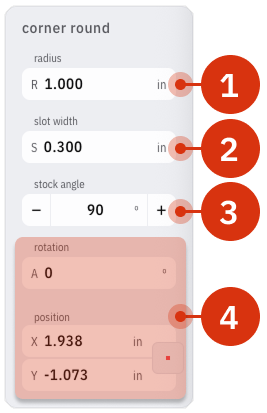
These parameters can be adjusted:
- Radius adjusts the inner curve of the Corner Round shape
- Slot Width adjusts the width of the cutting slot
- Stock Angle sets up the curve according to the angle of the workpiece or Studio shape
- Rotation and Position changes the angle and location of the tip of the Corner Round shape on the Studio Grid
One of the unique and useful features is that the slot eases in and out if the cut eliminating hard shifts in the angle in case alignment isn't perfect.
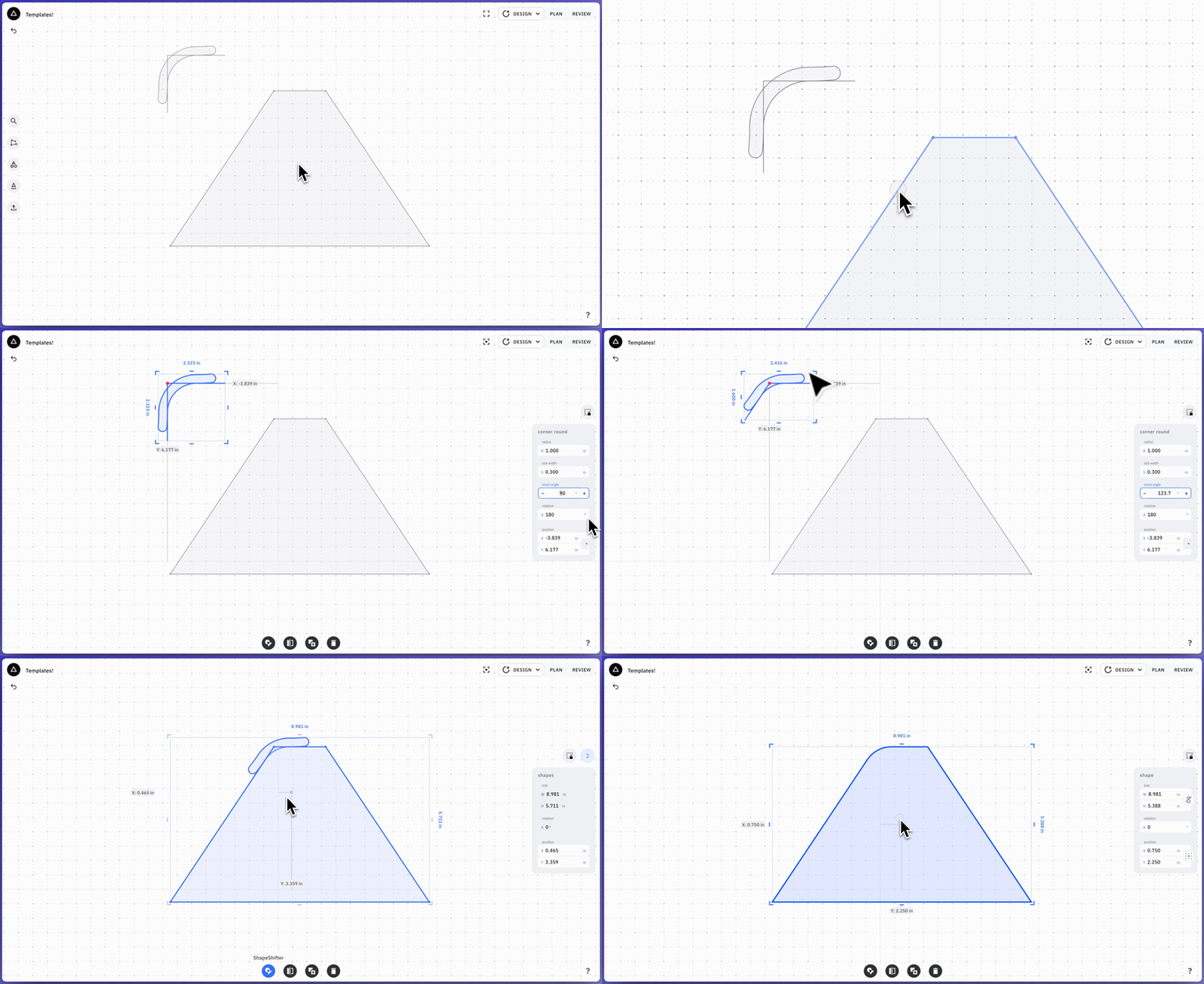
Using Corner Round on Studio Designs
Make sure the parameters match the design well enough to achieve the needed rounding, then rotate the Corner Round according to design. Once aligned and placed use ShapeShifter to clip the corner of the shape.
If the shape was made with the Draw Tool you can find the angle by clicking on one of the lines that make up the corner: