---
title: How to Cut a Circle
description: "Below you can see a demonstration of creating and cutting mortise and tenon joinery using the tool's design features: Circle is one of the most fundamental tools on Origin. You can use the circle too"
---
[Skip to content](https://support.shapertools.com/hc/en-us/articles/115002812293-create-a-circle-on-tool-and-cut-it#main-content)
- [English](https://support.shapertools.com/hc/en-us/articles/115002812293-create-a-circle-on-tool-and-cut-it)
- [Deutsch](https://support.shapertools.com/de/hc/de-de/articles/115002812293-kreis-direkt-auf-origin-erstellen-und-fräsen)
- [Français](https://support.shapertools.com/fr/hc/fr-fr/articles/115002812293-créer-et-fraiser-un-cercle-directement-sur-origin)
English
Show submenu for translations
[Contact us](https://support.shapertools.com/kb-tickets/new?hsLang=en)
![Shaper-KB-Logo.svg\]](https://support.shapertools.com/hubfs/Shaper-KB-Logo.svg)
Open main navigation
Close main navigation
- - [English](https://support.shapertools.com/hc/en-us/articles/115002812293-create-a-circle-on-tool-and-cut-it)
- [Deutsch](https://support.shapertools.com/de/hc/de-de/articles/115002812293-kreis-direkt-auf-origin-erstellen-und-fräsen)
- [Français](https://support.shapertools.com/fr/hc/fr-fr/articles/115002812293-créer-et-fraiser-un-cercle-directement-sur-origin)
English
Show submenu for translations
- [Contact us](https://support.shapertools.com/kb-tickets/new)
- [Go to shapertools.com](https://www.shapertools.com/)
[Go to shapertools.com](https://www.shapertools.com/)
Shaper Support
- There are no suggestions because the search field is empty.
1. [Help Center](https://support.shapertools.com/?hsLang=en)
2. [Origin](https://support.shapertools.com/origin?hsLang=en)
3. [Design Mode](https://support.shapertools.com/origin?hsLang=en#design-mode)
# How to Cut a Circle
Below you can see a demonstration of creating and cutting mortise and tenon joinery using the tool's design features:
Circle is one of the most fundamental tools on Origin. You can use the circle tool to create circles of arbitrary size, making it a great replacement for a large drill bit or a hole saw. When used in concert with the grid tool, the circle tool can make quick work of a line of circles spaced evenly apart.
To get started with your first circle, switch to the **Design** mode and tap the **Create** icon.
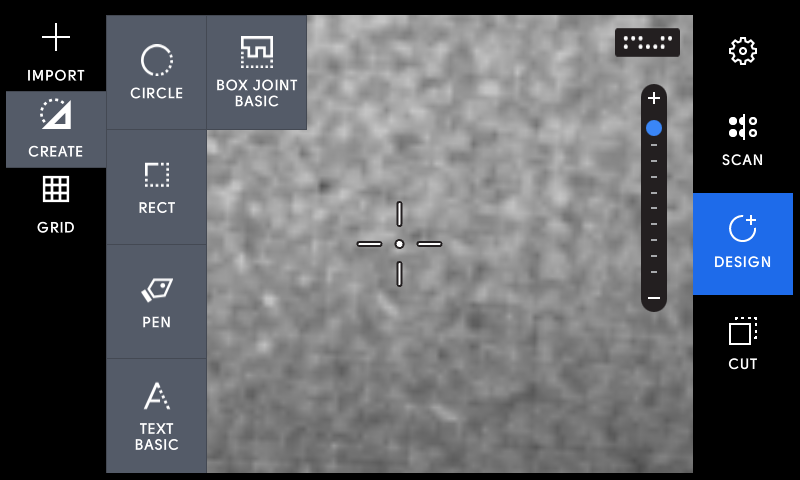
You can create a circle in a number of ways:
#### Creating Circles of Arbitrary size
Tap **Start Circle** or press the green button and drag out a circle of an arbitrary diameter. This mode is especially useful when referencing lines drawn on your workpiece.
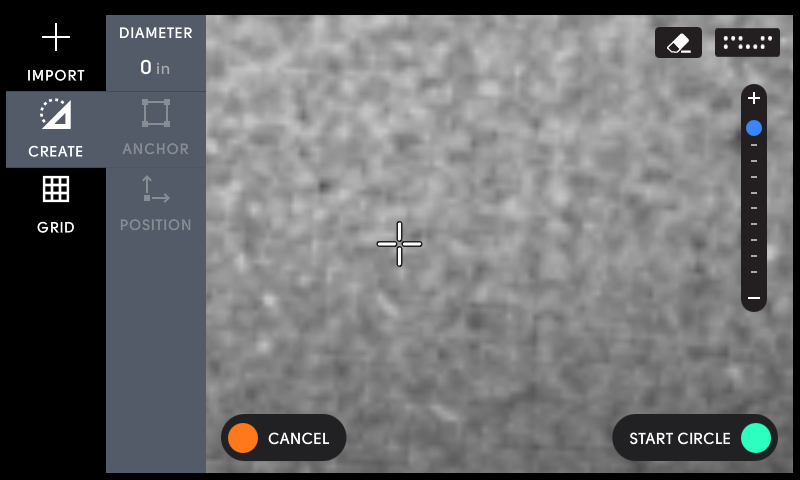
Tap **Place** to place the circle on your workpiece.
Creating Circles of Specific size
Tap the **Diameter** option to reveal a keypad. Entering the desired diameter here will allow you set a precise size for your circle.
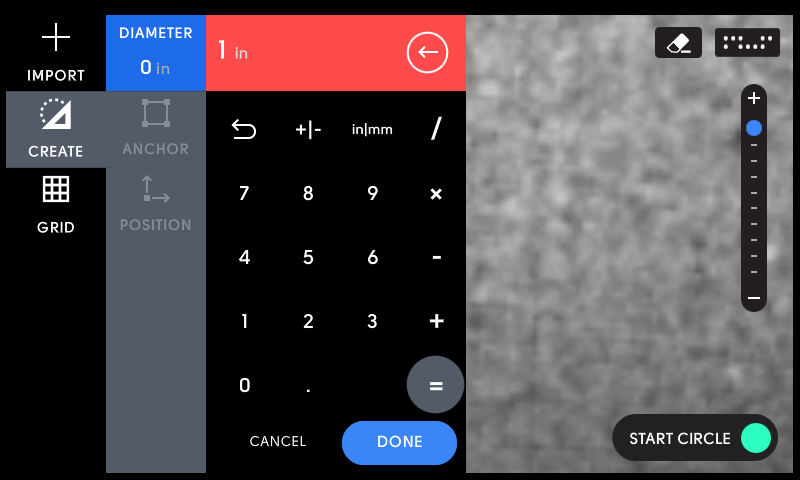
Tap **OK** when you're satisfied with the diameter of the circle. Then, move Origin around to find the spot where you'd like to place your circle. Tap **Place** when ready.
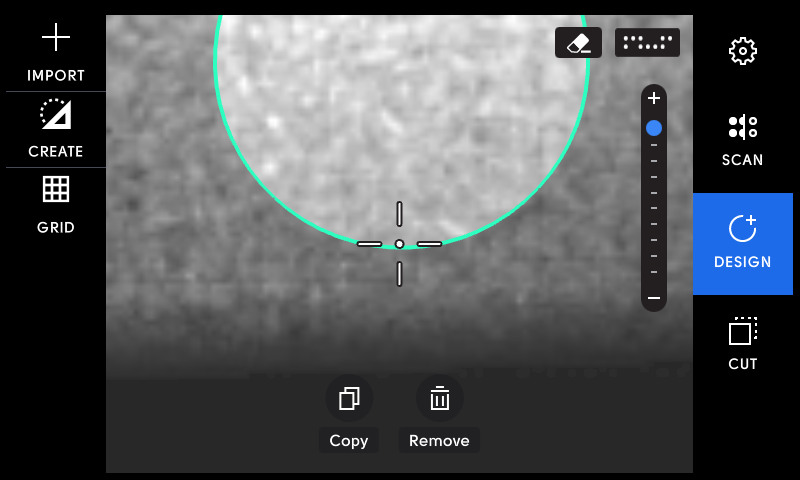
Now that we've placed our circle, it's time to get cutting! Tap **Cut** on the right to switch to cut mode.
#### Cut Mode
This is the place where you make your design a reality.
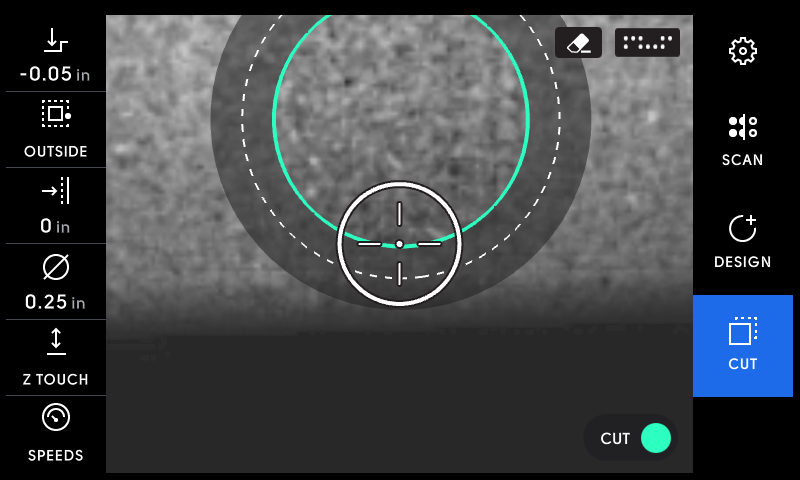
Much like Design mode, moving Origin in Cut mode moves your cursor on the workspace. As you move, designs under your cursor highlight, and the left menu updates to reflect the Cut Type of your design.
#### Z Touch
*If you're already touched off since changing the bit, you can skip this section.*
Before we start cutting, we need to tell Origin where the tip of the bit is. Tapping **Z Touch** will drive the spindle down until the tip of the bit touches the material surface. Origin uses a sensor located on its base, so ensure that Origin is completely over the material surface.
Now, tap **Z Touch**.
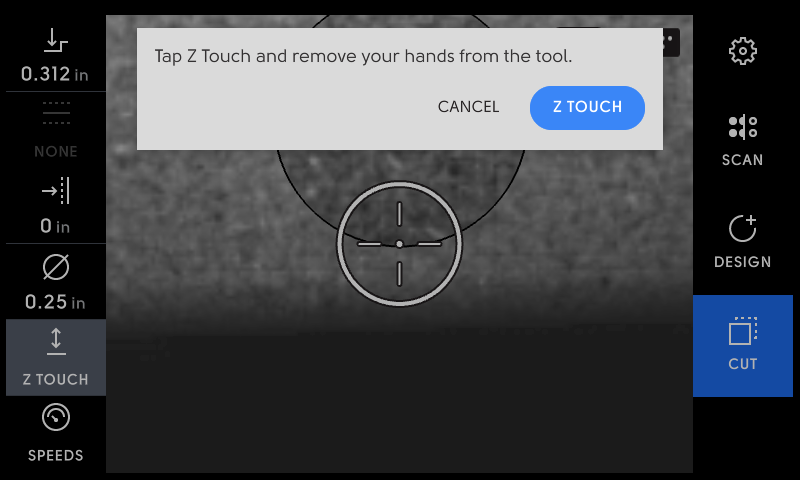
Make sure your hands are not on Origin's handles, as this might cause a failed Z Touch. Tap **Plunge** when ready.
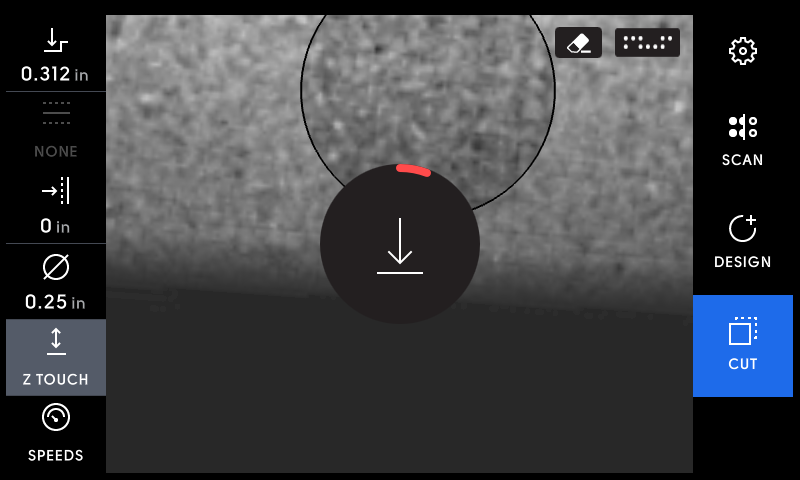
Origin will plunge until it records the bit touching the material surface and then retract. When successful, you'll see a green checkmark.
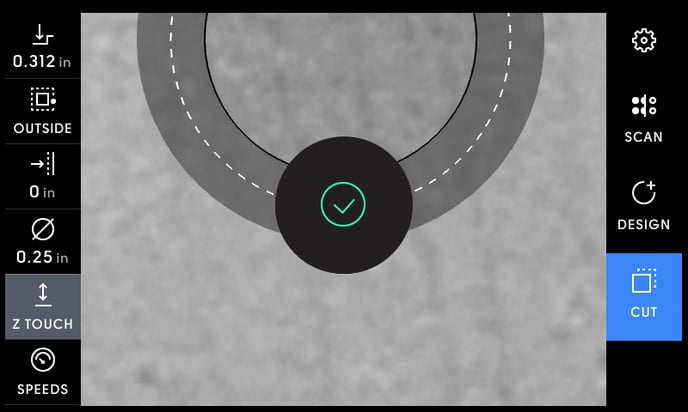
If a red checkmark appears, ensure the following:
- A bit is installed in the collet
- The spindle is firmly clamped in the spindle mount
- Origin's base is completely over the material surface
- The material surface was not bumped during Z Touch
- Origin can see tape during Z Touch
#### Aircut
Now, select your circle by moving Origin over it. Running through the following steps you'll perform an **Air Cut**, a cut that doesn't plunge the bit into your material so you can practice or test your cut before committing to cutting.
#### Cut Type
You'll see the **Cut Type** flash to Outside, which is the default for any on-tool shapes. Change this to your desired cut type, whether Outside, Inside, Pocket or On Line.
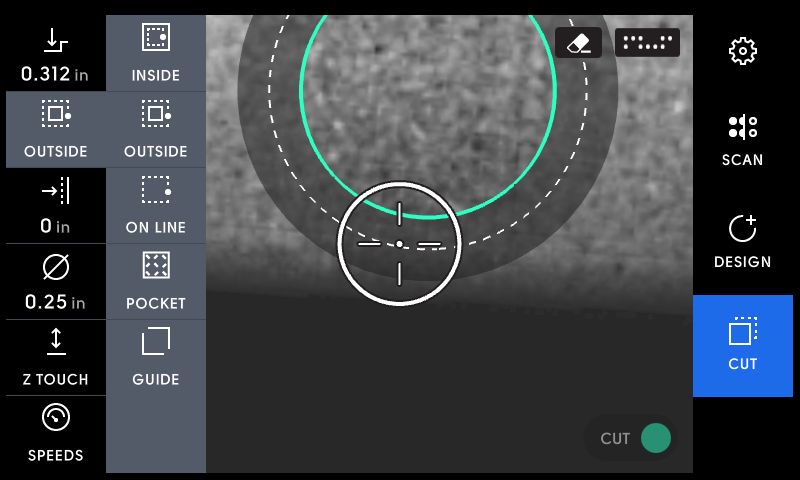
For simplicity's sake, let's keep this setting as the default of Outside.
#### Bit Size
Now tap **Bit Size**. This setting is located above Z Touch.
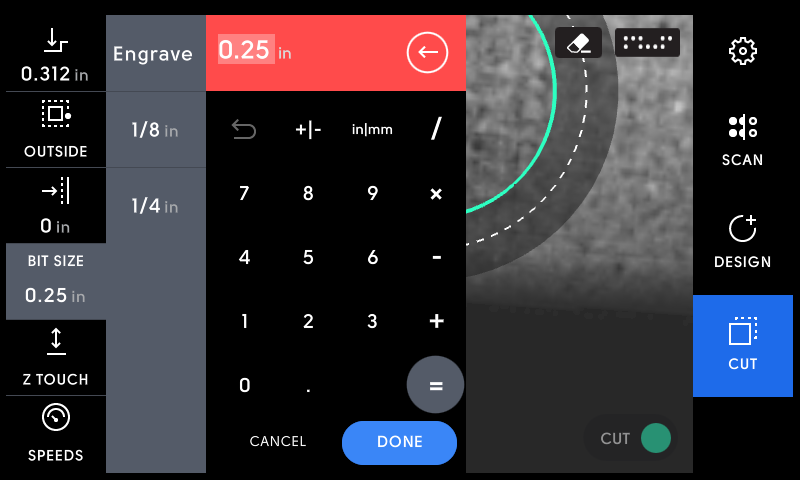
Specify the diameter of the cutter here. For cutters supplied by Shaper, you can use the presets on the left. Once you tap **OK**, Origin will suggest a Z Touch. Dismiss this if you've already performed a Z Touch since changing the cutter.
#### Depth
Provide the depth to plunge with this setting.
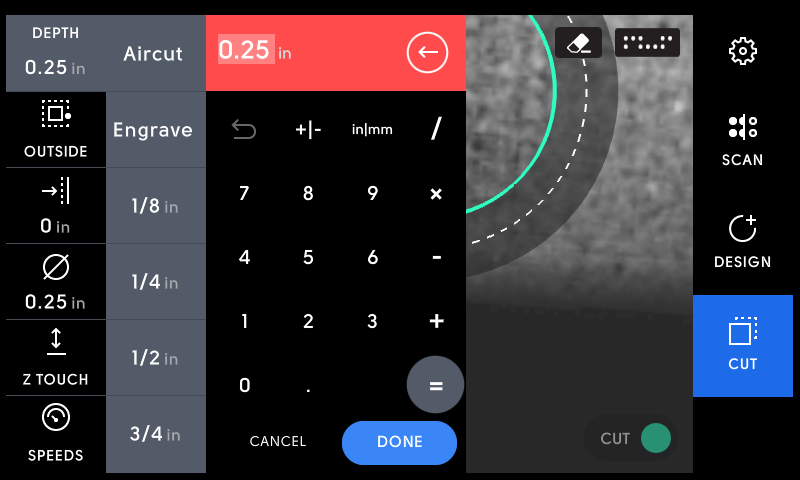
If the desired depth exceeds the diameter of the cutter, Shaper suggests taking multiple passes, each time incrementing by the cutter diameter. This will ensure proper cutter chip load, and result in a higher quality cut with improved safety.
Tap **Aircut** here so that you can follow the cut on Origin without cutting into your material surface.
Start Cutting
Let's take Origin for a spin. Tap **Start Cutting** or press the green button on the right handle. While Aircutting, turning on the spindle is unnecessary, as we won't be cutting during this step.
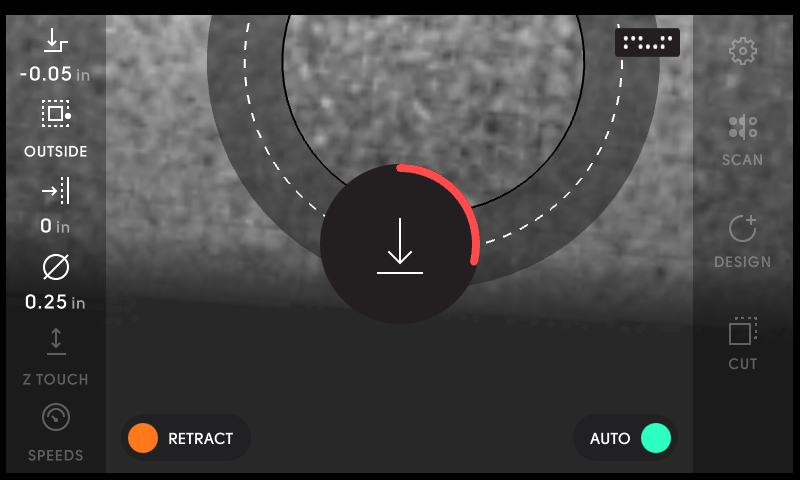
While Origin plunges to the requested depth, it shows a progress bar. During this time, do not move Origin. If you do, Origin will retract to ensure your safety and the safety of your material surface.
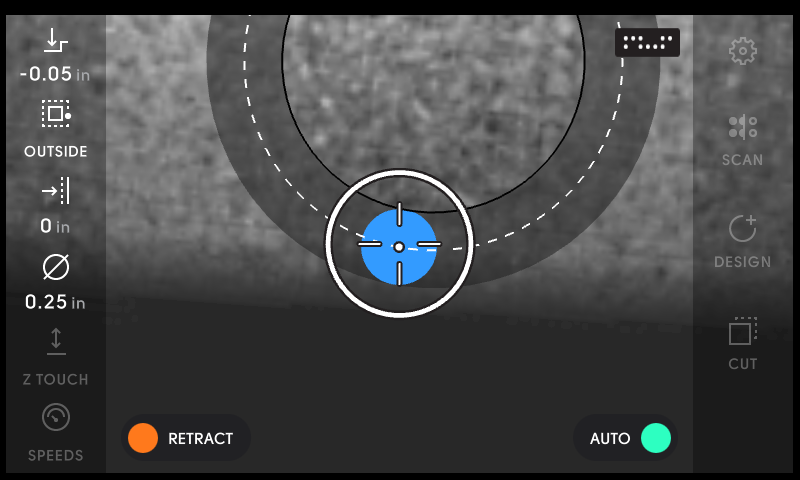
Now that we're plunged, follow the direction of the arrow and cut line dashes. Origin will suggest paths that are conventionally cut rather that climb cut for your safety. In the above image, the small dot indicates where the cutter is, and the outer circle indicates the corrective range. Always keep the small dot inside of the corrective range. If the small dot goes outside of the corrective range, Origin will retract and abort your cut.
With your hands on the handles, move Origin around the path.
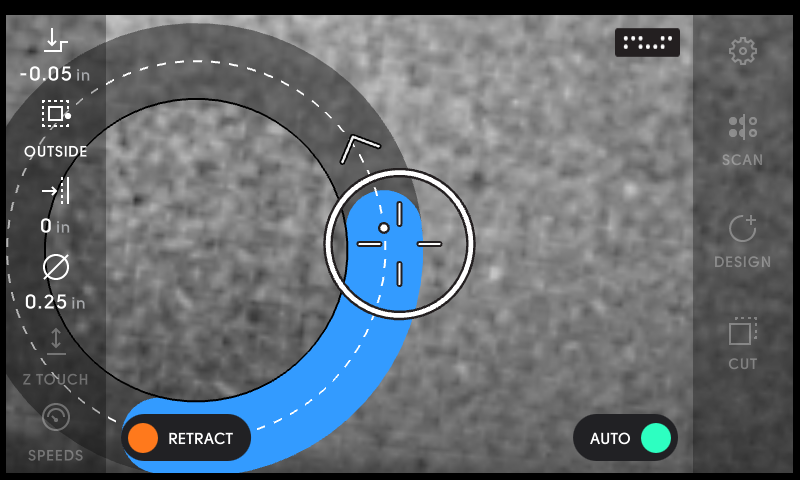
When you reach the start of your cut, tap **Retract** or press the orange button on the left handle.
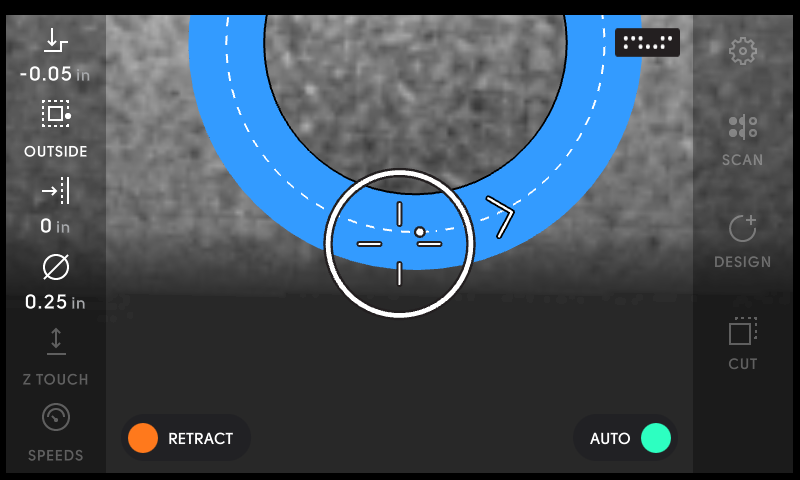
Congratulations! You've made your first Aircut!
#### Full depth cut
Now, the moment you've been waiting for, let's make some sawdust!
Let's erase the cut history from our Aircut first. Tap **Erase Cuts** to clear this workspace's history.
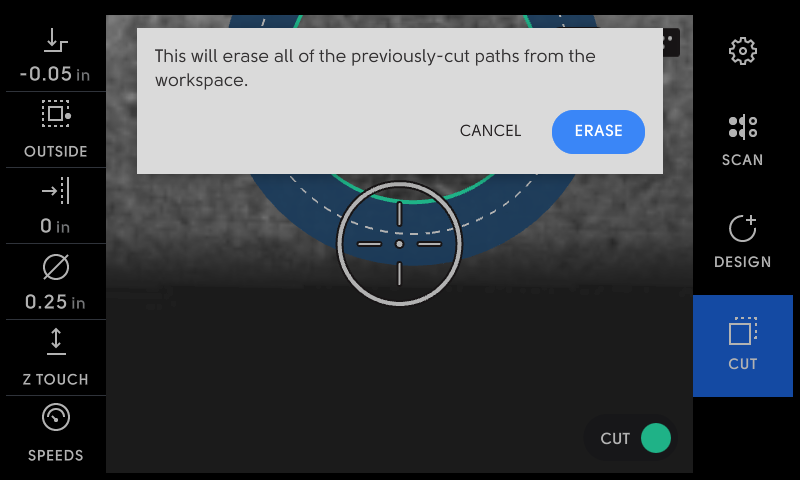
Tap **Erase**.
Let's return to the **Depth** setting and select our bit diameter for our first pass. I'll choose 1/4" to start.
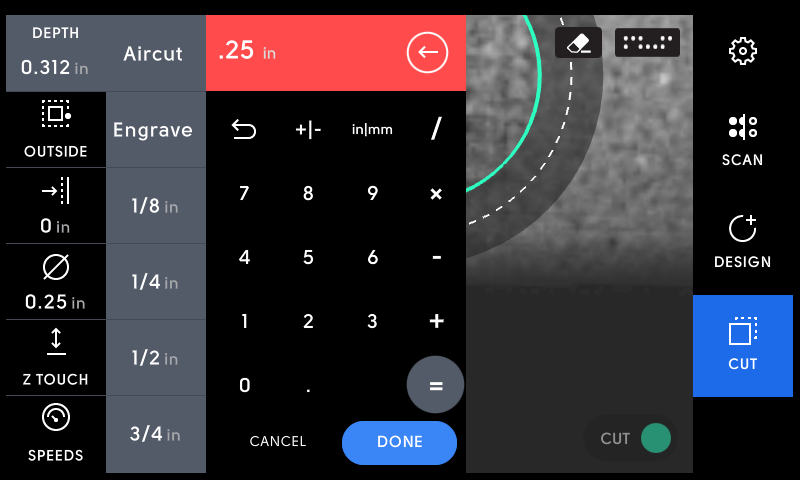
Hover over the cut path, and turn the spindle on.
Ensure that your dust collection is on and the spindle speed is set appropriately for the [material you're cutting](https://support.shapertools.com/hc/en-us/articles/360016398434-materials-recommendations?hsLang=en).
Tap the green cut button on your tool to start cutting.
SaveSave
- [Origin](https://support.shapertools.com/origin?hsLang=en#main-content)
- [Getting Started Guide](https://support.shapertools.com/origin?hsLang=en#getting-started-guide)
- [Workspace Setup](https://support.shapertools.com/origin?hsLang=en#workspace-setup)
- [Scanning](https://support.shapertools.com/origin?hsLang=en#scanning)
- [Design Mode](https://support.shapertools.com/origin?hsLang=en#design-mode)
- [Extensions](https://support.shapertools.com/origin?hsLang=en#extensions)
- [Cut Mode](https://support.shapertools.com/origin?hsLang=en#cut-mode)
- [Cutting Principles and Techniques](https://support.shapertools.com/origin?hsLang=en#cutting-principles-and-techniques)
- [Issues when Cutting](https://support.shapertools.com/origin?hsLang=en#issues-when-cutting)
- [Error Messages](https://support.shapertools.com/origin?hsLang=en#error-messages)
- [Tips and Tricks](https://support.shapertools.com/origin?hsLang=en#tips-and-tricks)
- [Origin FAQs](https://support.shapertools.com/origin?hsLang=en#origin-faqs)
- [Usage FAQs](https://support.shapertools.com/origin?hsLang=en#usage-faqs)
- [Spindle FAQs](https://support.shapertools.com/origin?hsLang=en#spindle-faqs)
- [Returns & Repairs](https://support.shapertools.com/origin?hsLang=en#returns-repairs)
- [BenchPilot](https://support.shapertools.com/benchpilot?hsLang=en#main-content)
- [Connecting to BenchPilot](https://support.shapertools.com/benchpilot?hsLang=en#connecting-to-benchpilot)
- [Before Starting a BenchPilot Cut](https://support.shapertools.com/benchpilot?hsLang=en#before-starting-a-benchpilot-cut)
- [While Cutting with BenchPilot](https://support.shapertools.com/benchpilot?hsLang=en#while-cutting-with-benchpilot)
- [BenchPilot Troubleshooting](https://support.shapertools.com/benchpilot?hsLang=en#benchpilot-troubleshooting)
- [Plate](https://support.shapertools.com/plate?hsLang=en#main-content)
- [Learn About](https://support.shapertools.com/plate?hsLang=en#learn-about)
- [At A Glance](https://support.shapertools.com/plate?hsLang=en#at-a-glance)
- [Aligning Plate](https://support.shapertools.com/plate?hsLang=en#aligning-plate)
- [Origin + Plate Setup](https://support.shapertools.com/plate?hsLang=en#origin-plate-setup)
- [Working with Plate](https://support.shapertools.com/plate?hsLang=en#working-with-plate)
- [Edge Mortising Adapter](https://support.shapertools.com/plate?hsLang=en#edge-mortising-adapter)
- [Maintenance & Technical Data](https://support.shapertools.com/plate?hsLang=en#maintenance-technical-data)
- [Workstation](https://support.shapertools.com/workstation?hsLang=en#main-content)
- [Learn About](https://support.shapertools.com/workstation?hsLang=en#learn-about)
- [Studio](https://support.shapertools.com/studio?hsLang=en#main-content)
- [Using Studio](https://support.shapertools.com/studio?hsLang=en#using-studio)
- [Main Menu](https://support.shapertools.com/studio?hsLang=en#main-menu)
- [Design Mode](https://support.shapertools.com/studio?hsLang=en#design-mode)
- [Plan Mode](https://support.shapertools.com/studio?hsLang=en#plan-mode)
- [Review Mode](https://support.shapertools.com/studio?hsLang=en#review-mode)
- [Templates](https://support.shapertools.com/studio?hsLang=en#templates)
- [License and Account](https://support.shapertools.com/studio?hsLang=en#license-and-account)
- [Trace](https://support.shapertools.com/trace?hsLang=en#main-content)
- [Getting Started](https://support.shapertools.com/trace?hsLang=en#getting-started)
- [Capturing Your Drawing](https://support.shapertools.com/trace?hsLang=en#capturing-your-drawing)
- [Converting Your Drawing to Vectors](https://support.shapertools.com/trace?hsLang=en#converting-your-drawing-to-vectors)
- [Saving Your Vectors](https://support.shapertools.com/trace?hsLang=en#saving-your-vectors)
- [Care & Storage](https://support.shapertools.com/trace?hsLang=en#care-storage)
- [Trace FAQs](https://support.shapertools.com/trace?hsLang=en#trace-faqs)
- [AutoPass](https://support.shapertools.com/autopass?hsLang=en#main-content)
- [Activation](https://support.shapertools.com/autopass?hsLang=en#activation)
- [Before Cutting](https://support.shapertools.com/autopass?hsLang=en#before-cutting)
- [While Cutting](https://support.shapertools.com/autopass?hsLang=en#while-cutting)
- [FAQs](https://support.shapertools.com/autopass?hsLang=en#faqs)
- [Connected Caliper](https://support.shapertools.com/connected-caliper?hsLang=en#main-content)
- [Getting Started with your Connected Caliper](https://support.shapertools.com/connected-caliper?hsLang=en#getting-started-with-your-connected-caliper)
- [Connecting the Caliper to your Device](https://support.shapertools.com/connected-caliper?hsLang=en#connecting-the-caliper-to-your-device)
- [Using the Caliper](https://support.shapertools.com/connected-caliper?hsLang=en#using-the-caliper)
- [Removing the Caliper from your Device](https://support.shapertools.com/connected-caliper?hsLang=en#removing-the-caliper-from-your-device)
- [Care & Maintenance](https://support.shapertools.com/connected-caliper?hsLang=en#care-maintenance)
- [Learn About](https://support.shapertools.com/connected-caliper?hsLang=en#learn-about)
- [Accessories](https://support.shapertools.com/accessories?hsLang=en#main-content)
- [Origin Accessories](https://support.shapertools.com/accessories?hsLang=en#origin-accessories)
- [Basic Bits](https://support.shapertools.com/accessories?hsLang=en#basic-bits)
- [Specialty Router Bits](https://support.shapertools.com/accessories?hsLang=en#specialty-router-bits)
- [ShaperTape FAQs](https://support.shapertools.com/accessories?hsLang=en#shapertape-faqs)
- [Replacement Parts](https://support.shapertools.com/replacement-parts?hsLang=en#main-content)
- [Gen2 Origin](https://support.shapertools.com/replacement-parts?hsLang=en#gen2-origin)
- [Shaper Workstation](https://support.shapertools.com/replacement-parts?hsLang=en#shaper-workstation)
- [Shaper Plate](https://support.shapertools.com/replacement-parts?hsLang=en#shaper-plate)
- [ShaperHub](https://support.shapertools.com/shaperhub?hsLang=en#main-content)
- [ShaperHub](https://support.shapertools.com/shaperhub?hsLang=en#shaperhub)
- [Designing for Origin](https://support.shapertools.com/designing-for-origin?hsLang=en#main-content)
- [Overview](https://support.shapertools.com/designing-for-origin?hsLang=en#overview)
- [Adobe Illustrator](https://support.shapertools.com/designing-for-origin?hsLang=en#adobe-illustrator)
- [Affinity Designer](https://support.shapertools.com/designing-for-origin?hsLang=en#affinity-designer)
- [Coreldraw](https://support.shapertools.com/designing-for-origin?hsLang=en#coreldraw)
- [Fusion 360](https://support.shapertools.com/designing-for-origin?hsLang=en#fusion-360)
- [Inkscape](https://support.shapertools.com/designing-for-origin?hsLang=en#inkscape)
- [Palette CAD](https://support.shapertools.com/designing-for-origin?hsLang=en#palette-cad)
- [Rhino 3d](https://support.shapertools.com/designing-for-origin?hsLang=en#rhino-3d)
- [Shapr3d](https://support.shapertools.com/designing-for-origin?hsLang=en#shapr3d)
- [SketchUp](https://support.shapertools.com/designing-for-origin?hsLang=en#sketchup)
- [Pytha](https://support.shapertools.com/designing-for-origin?hsLang=en#pytha)
- [Vectr](https://support.shapertools.com/designing-for-origin?hsLang=en#vectr)
- [Vectorworks](https://support.shapertools.com/designing-for-origin?hsLang=en#vectorworks)
- [Designing Issues](https://support.shapertools.com/designing-for-origin?hsLang=en#designing-issues)
- [Troubleshooting and Maintenance](https://support.shapertools.com/troubleshooting-and-maintenance?hsLang=en)
[](https://shapertools.com?hsLang=en)
Shaper Help Center
Copyright © 2025, Shaper Tools